مقدمة: إنشاء حالة وسائل التواصل الاجتماعي
تم تصميم هذه الأداة لمساعدتك في إنشاء رسومات جميلة ودقيقة ومصممة خصيصًا لوسائل التواصل الاجتماعي في ثوانٍ. باستخدام البيانات المباشرة من صالة القمار، يمكنك إعلام اللاعبين بالألعاب الجارية وقوائم الانتظار على الفور، دون الحاجة إلى أي برنامج تصميم.
أنواع المنشورات الثلاثة
تم بناء الأداة حول ثلاثة أنواع أساسية من المنشورات، كل منها مصمم لغرض معين.
1. الألعاب الجارية
هذا هو المكان الذي يمكنك فيه الإعلان عن الأحداث الحالية. يقوم النظام تلقائيًا باسترداد جميع الألعاب النقدية النشطة وتجميعها، واقتراح عنوان ملخص مثل "5 جداول قيد التشغيل!".
2. تبدأ قريبًا
استخدم هذا لزيادة الإثارة حول لعبة ينتظرها اللاعبون. يعرض لك النظام قائمة بقوائم الانتظار النشطة، وبمجرد تحديد واحد منها، فإنه يملأ تلقائيًا جميع تفاصيل اللعبة.
3. معلومات عامة
هذه هي مساحتك الفارغة لكل شيء آخر: عروض ترويجية خاصة، وإعلانات البطولات، وتحيات العطلات، أو أي رسالة مخصصة أخرى تريد مشاركتها.
Step-by-Step: Creating a Status Update
Follow these simple steps to generate and post your first update.
Step 1: Open the Creator
From the Marketing home screen, tap the floating + button at the bottom right to open the Create Status Update page.
Step 2: Choose a Post Type & Fetch Data
Select your desired post type at the top. For data-driven posts:
- If Running Games, tap the "Fetch Current Games" button.
- If Starting Soon, tap the "Select Game from Waitlist" button and choose a game.
The system will automatically populate the relevant details and suggest a title for you.
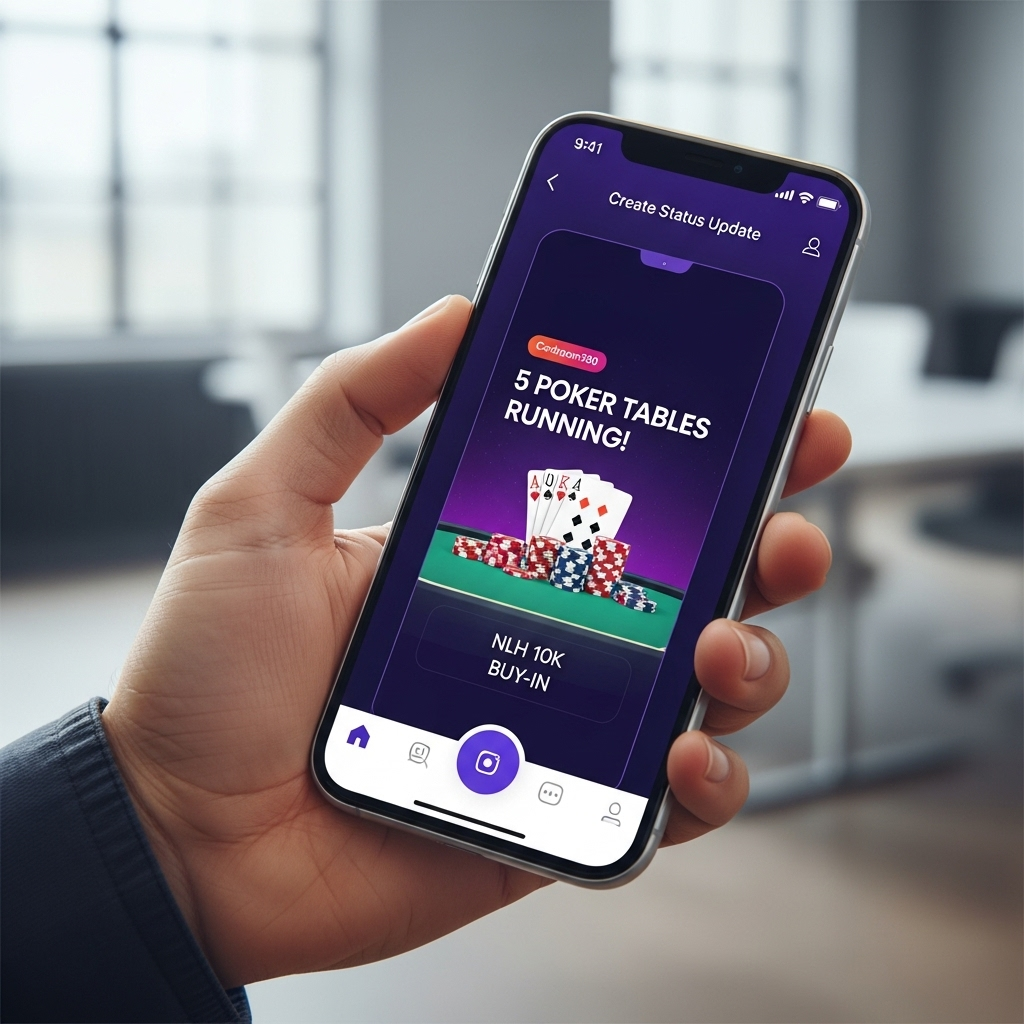
The system will automatically populate the relevant details and suggest a title for you.
Step 3: Select a Template
Scroll through the horizontal list of templates at the bottom of the screen. Tap on a design to apply it to your content. A blue border will confirm your selection.
Step 4: Post Your Update
Once you are happy with the title, content, and template, tap the large "Post Status Update" button at the bottom. You will be taken back to the main list where your new graphic will appear at the top.
Sharing Your Update
Creating the post is just the first step. Now it's time to share it with your players.
- Find the post you just created in the main Status Updates grid.
- Tap the Share Icon located on the card.
- The standard Android Share Sheet will appear.
- Select the app you want to share to (e.g., WhatsApp, Instagram, Facebook) and complete the process.
After sharing, always double-check your story or post in the social media app to ensure the image and text look correct before your audience sees it.